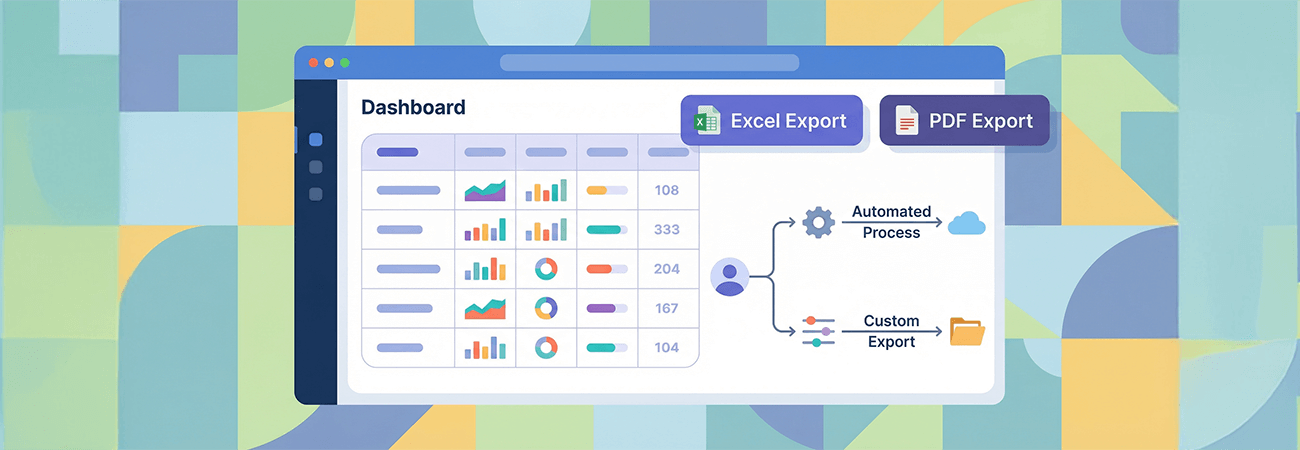
Kendo UI grids provide a robust way to display and manage data in web applications, and their export functionality—whether to Excel or PDF—is a key feature for many developers. A common point of confusion is the role of the jszip.js library in exporting to Excel. While it's required for the grid's built-in saveAsExcel() method, there's an alternative approach using workbook.toDataURLAsync() that doesn't depend on jszip.js. In this blog post, we'll cover how to call export functions in two scenarios: when jszip.js is included and when it's not.
Understanding the Role of jszip.js
The jszip.js library is a dependency for the Kendo UI Grid's built-in Excel export feature via saveAsExcel(). It handles the compression and creation of .xlsx files. However, if you manually construct a workbook using kendo.ooxml.Workbook and use its toDataURLAsync() method, you can export to Excel without needing jszip.js. PDF exports, on the other hand, never require jszip.js. Let's explore both approaches.
Scenario 1: Exporting with jszip.js Included
When jszip.js is included, you can leverage the Kendo UI Grid's built-in export methods for a seamless experience.
Step 1: Include jszip.js
Add jszip.js to your project before the Kendo UI scripts. You can use a CDN or a local copy:
<script src="https://cdnjs.cloudflare.com/ajax/libs/jszip/3.10.1/jszip.min.js"></script>Step 2: Configure the Grid Toolbar
Enable export buttons in the grid's toolbar option:
$("#grid").kendoGrid({
  toolbar: ["excel", "pdf"],
  columns: [
    { field: "name", title: "Name" },
    { field: "age", title: "Age" }
  ],
  dataSource: {
    data: [
      { name: "John", age: 30 },
      { name: "Jane", age: 25 }
    ]
  }
});
This adds "Export to Excel" and "Export to PDF" buttons to the toolbar.
Step 3: Call Export Functions Programmatically (Optional)
Trigger exports manually using saveAsExcel() or saveAsPDF():
var grid = $("#grid").data("kendoGrid");

// Export to Excel
grid.saveAsExcel();

// Export to PDF
grid.saveAsPDF();
What Happens?
- Excel Export: With jszip.js,
saveAsExcel()generates an .xlsx file using the grid's current data and settings. - PDF Export:
saveAsPDF()creates a .pdf file, independent of jszip.js.
Scenario 2: Exporting Without jszip.js Using workbook.toDataURLAsync()
If you don't include jszip.js, the built-in saveAsExcel() method won't work, but you can still export to Excel by manually creating a workbook and using toDataURLAsync(). PDF exports remain unaffected.
Step 1: Skip jszip.js
Load only the Kendo UI scripts:
<script src="https://kendo.cdn.telerik.com/2023.3.1010/js/kendo.all.min.js"></script>Step 2: Configure the Grid and Build a Workbook
Since saveAsExcel() requires jszip.js, you'll need to construct the export logic yourself. Here's an example:
$("#grid").kendoGrid({
  columns: [
    { field: "name", title: "Name" },
    { field: "age", title: "Age" }
  ],
  dataSource: {
    data: [
      { name: "John", age: 30 },
      { name: "Jane", age: 25 }
    ]
  }
});

// Custom export function
function exportToExcel() {
  var grid = $("#grid").data("kendoGrid");
  var data = grid.dataSource.data();

  // Build the workbook
  var workbook = new kendo.ooxml.Workbook({
    sheets: [{
      columns: [
        { autoWidth: true },
        { autoWidth: true }
      ],
      title: "Sheet1",
      rows: [
        { cells: [{ value: "Name" }, { value: "Age" }] }, // Header row
        ...data.map(item => ({
          cells: [
            { value: item.name },
            { value: item.age }
          ]
        }))
      ]
    }]
  });

  // Export using toDataURLAsync
  workbook.toDataURLAsync().then(function(dataURL) {
    kendo.saveAs({
      dataURI: dataURL,
      fileName: "GridExport.xlsx"
    });
  });
}

// Trigger the export (e.g., via a button)
$("#exportButton").on("click", exportToExcel);
Add a button to your HTML:
<button id="exportButton">Export to Excel</button>Step 3: PDF Export (Still Available)
You can still use saveAsPDF() without jszip.js:
var grid = $("#grid").data("kendoGrid");
grid.saveAsPDF();
What Happens?
- Excel Export: The
toDataURLAsync()method generates a data URL for the .xlsx file without relying on jszip.js. You have full control over the workbook structure. - PDF Export:
saveAsPDF()works as usual, unaffected by the absence of jszip.js.
Key Differences and Best Practices
| Feature | With jszip.js (saveAsExcel) | Without jszip.js (toDataURLAsync) |
|---|---|---|
| Excel Export | Built-in, automatic | Manual workbook creation |
| PDF Export | Fully supported | Fully supported |
| Dependencies | Requires jszip.js | No extra dependencies |
| Complexity | Simple, grid-managed | Requires custom logic |
Tips for Success
- Use jszip.js for Simplicity: If you want the grid to handle exports automatically, include jszip.js and stick with
saveAsExcel(). - Leverage toDataURLAsync for Flexibility: Without jszip.js, you gain more control over the workbook (e.g., custom sheets, formatting) but need to write more code.
- Test Browser Compatibility: Both methods work in modern browsers, but older browsers (e.g., IE9) may require a server proxy for file saving.
- Handle Errors: Without jszip.js, calling
saveAsExcel()will throw an error—avoid it and use the manual approach instead.
Conclusion
Exporting data from Kendo UI grids is highly flexible. With jszip.js, you get a plug-and-play solution via saveAsExcel(), perfect for quick setups. Without it, workbook.toDataURLAsync() offers a powerful alternative, letting you craft custom Excel files without extra dependencies. Choose the approach that best fits your project's needs—both get the job done!
For more details, check out the Kendo UI Grid documentation.